

Description
Download 1Click DVD Copy – Fast, Secure DVD Backup Tool for Windows
Overview
1Click DVD Copy is a compact yet powerful Windows utility designed to make DVD backup simple and reliable. Whether you own a growing movie collection, a library of TV‑show discs, or just a few favorite titles, this tool lets you create exact, near‑lossless copies with just a single click. By applying a modest amount of extra compression, the program can fit a full‑length DVD movie onto a single‑layer DVDR disc, while still preserving the original picture quality and audio fidelity. It also supports dual‑layer discs for those high‑capacity releases that exceed 8.5 GB. What sets 1Click DVD Copy apart is its ability to let you decide whether you want to copy only the main feature or include all extra content such as behind‑the‑scenes, subtitles, and alternative audio tracks. The built‑in burning engine speeds up the process, handling both compression and disc burning in one streamlined workflow. In addition to disc‑to‑disc copying, the software offers the convenience of saving DVD files directly to your hard drive – a handy feature for laptop users who prefer a portable library without the need for physical media. While the user interface leans toward a minimalist, circular design that may feel unconventional at first, the application works well out of the box with sensible defaults. In short, 1Click DVD Copy delivers a solid, no‑frills solution for anyone looking to safeguard their DVD collection quickly, securely, and without a steep learning curve.
Key Features
- One‑click DVD duplication – insert, click, and let the software handle the rest.
- Supports both single‑layer and dual‑layer DVD‑R discs.
- Optional compression that retains original video quality.
- Choice to copy main feature only or include all bonus content.
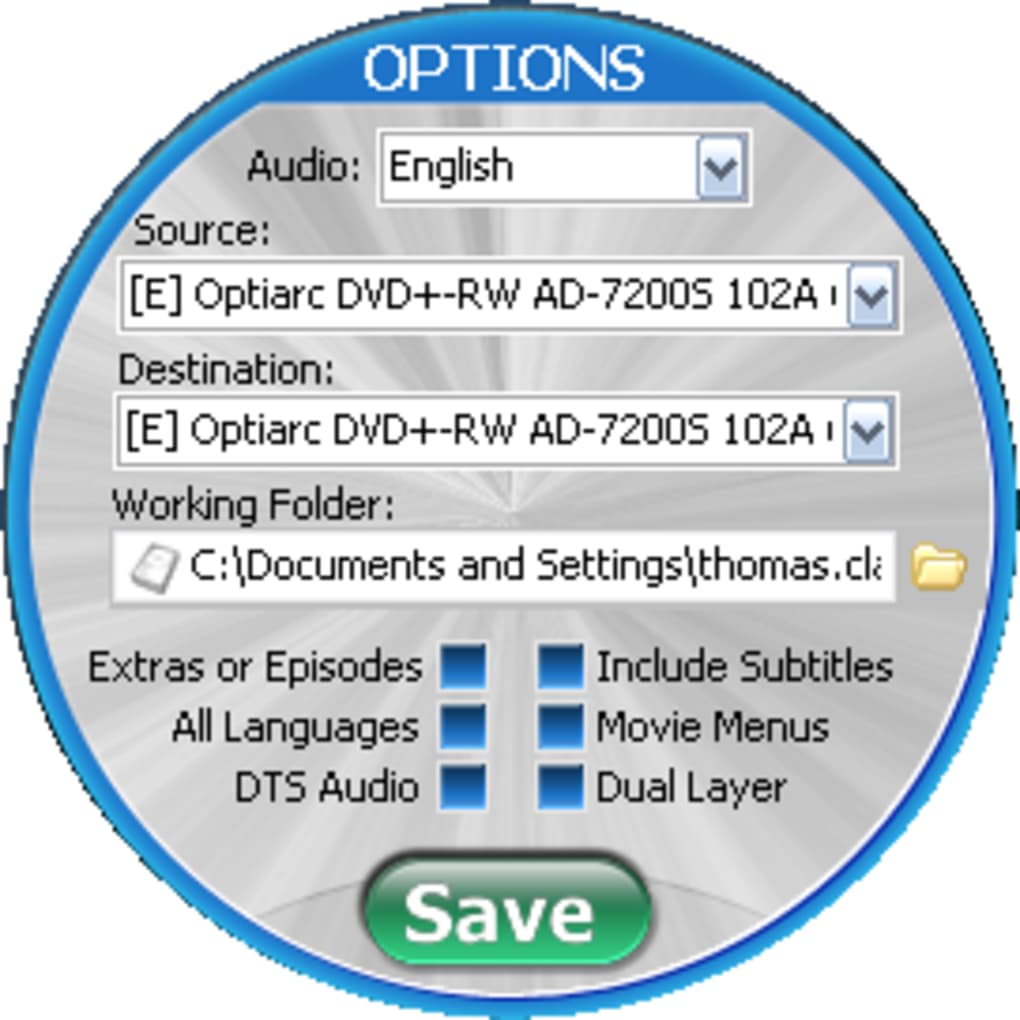
- Full support for multiple audio formats, including DTS and Dolby Digital.
- Subtitle selection and language options for multilingual collections.
- Built‑in burning engine eliminates the need for third‑party burners.
- Save copies directly to hard‑disk for portable, disc‑free libraries.
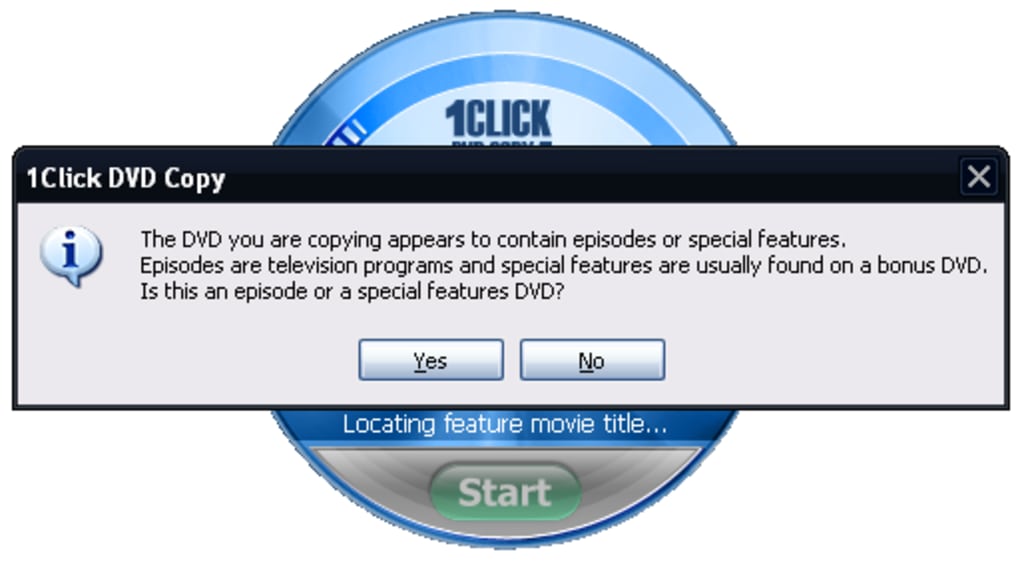
- Automatic detection of TV‑show episodes versus movie titles.
- Lightweight footprint – runs smoothly on older Windows PCs.
These features are packaged in a straightforward interface that emphasizes speed and reliability. While power users may miss deep‑level customization, the default settings are tuned for optimal balance between file size and visual fidelity, ensuring that the copied disc looks and sounds just like the original. The inclusion of a proprietary compression algorithm means you rarely need to sacrifice quality to fit a movie onto a single‑layer disc, and the ability to preserve DTS soundtracks is a notable advantage for audiophiles who demand high‑definition audio. Moreover, the program’s automatic content detection reduces the guesswork when dealing with mixed‑type discs, such as TV series box sets that contain multiple episodes and bonus materials.
Installation & Usage Guide
Step‑by‑Step Installation
Getting started with 1Click DVD Copy is intentionally straightforward. Begin by downloading the installer from the official website. The .exe file is under 10 MB, reflecting the program’s lightweight design. Run the installer and follow the on‑screen prompts: accept the license agreement, choose a destination folder (the default works for most users), and let the setup copy the necessary files. Once installation completes, a shortcut appears on the desktop and the program registers itself in the Windows Start menu.
Copying a DVD in Three Simple Steps
1. Insert the source DVD into your computer’s optical drive. The software automatically detects the disc and displays its content type – whether it’s a movie, a TV‑show collection, or a mixed disc with extras.
2. Select your copying preferences. In the right‑click context menu, you can choose “Main Feature Only” or “Full Disc with Extras.” You may also pick the audio track (e.g., DTS, Dolby Digital) and subtitles you wish to retain.
3. Choose the destination. Opt for “Burn to DVD” if you have a blank disc ready, or “Save to Hard Disk” if you prefer a digital copy. Click the “Start” button, and the built‑in engine begins compressing and burning (or writing) the data. Progress is displayed in a clear progress bar, and an estimated time‑remaining indicator helps you plan accordingly.
The entire process typically takes between 10 and 20 minutes for a standard‑length movie, depending on your hardware’s DVD drive speed and the chosen compression level. For dual‑layer discs, the time may be slightly longer, but the interface remains responsive throughout. After completion, the program verifies the copy and offers a quick playback test, ensuring that the new disc or file plays correctly before you eject or move on to the next title.
Compatibility, Pros & Cons
1Click DVD Copy is built exclusively for Windows operating systems, supporting Windows 7, 8, 8.1, 10, and 11 (both 32‑bit and 64‑bit). The application requires a DVD‑R/W drive and at least 200 MB of free disk space for installation. While it does not have native macOS, Linux, Android, or iOS versions, the Windows‑only focus allows the developers to fine‑tune performance for the most common desktop environment.
Pros
- Extremely easy to use – ideal for beginners and non‑technical users.
- Fast compression and burning thanks to a proprietary engine.
- High‑quality video output with minimal quality loss.
- Supports multiple audio formats, including DTS.
- Option to save copies directly to hard drive for portable libraries.
- Low system requirements – runs well on older PCs.
Cons
- Non‑standard circular UI can be confusing at first glance.
- Limited customization; advanced users may miss deeper settings.
- Only available for Windows – no macOS or mobile versions.
- Right‑click is required to access some options, which is not intuitive.
- No built‑in video editing or trimming capabilities.
Frequently Asked Questions
Can I copy a DVD that is copy‑protected?
1Click DVD Copy can handle many standard copy‑protection schemes, but it is not designed to bypass advanced DRM such as AACS or BD+ used on Blu‑ray discs. For most commercial DVDs, the software will read and copy the data without issue.
What is the maximum size of a DVD that can be saved to my hard drive?
When saving to a hard drive, the program creates an ISO image that mirrors the original disc size. A single‑layer DVD (up to 4.7 GB) and a dual‑layer DVD (up to 8.5 GB) are both supported, provided you have sufficient free space on your storage device.
Do I need a separate DVD burner?
No additional hardware is required beyond a standard DVD‑R/W drive. The built‑in burning engine writes the data directly to any blank DVD‑R or DVD‑R DL disc you insert.
Is there a free trial available?
Yes, the developer offers a 14‑day trial that lets you copy up to three discs. This allows you to evaluate performance and quality before purchasing the full license.
Can I copy subtitles and multiple audio tracks?
Absolutely. During the copy setup, you can select which audio streams (including DTS) and subtitle tracks you want to retain. The program embeds these choices into the new disc or ISO file.
Conclusion & Call to Action
If you need a reliable, fast, and straightforward way to safeguard your DVD collection, 1Click DVD Copy delivers exactly what the name promises – a single click to duplicate, compress, and burn. While the UI might feel a little unconventional and power users could crave more granular controls, the software’s core strengths lie in its simplicity, speed, and near‑lossless output. For Windows users who want a “set‑and‑forget” solution without juggling multiple third‑party tools, this app offers excellent value at a modest price. Ready to protect your movies and shows? Download 1Click DVD Copy today and start creating secure backups in minutes.
Pros: Easy to use, fast burning, high‑quality output, supports DTS, saves to hard drive.
Cons: Circular UI, limited customization, Windows‑only.
Guides & Tutorials for 1Click DVD Copy
How to install 1Click DVD Copy
- Click the Preview / Download button above.
- Once redirected, accept the terms and click Install.
- Wait for the 1Click DVD Copy download to finish on your device.
How to use 1Click DVD Copy
This software is primarily used for its core features described above. Open the app after installation to explore its capabilities.
User Reviews for 1Click DVD Copy 0
No reviews found





